FreeCharge Business 31 Dec 2025
How to Create an Account on the FreeCharge UPI App
How to Create a FreeCharge UPI Account (Step-by-Step)
FreeCharge is a popular UPI app in India that allows users to make payments, receive money, and link bank accounts securely. Follow the steps below to create your FreeCharge UPI account.
Step 1: Download the FreeCharge App
Install the FreeCharge app from:
- Google Play Store (Android)
- Apple App Store (iOS)
Search for “FreeCharge” and install the app.
Step 2: Open the App & Register
- Open the FreeCharge app
- Enter your mobile number (the same number linked to your bank account)
- Tap Continue
You will receive an OTP on your mobile number.
Step 3: Verify Mobile Number
- Enter the OTP received via SMS
- Allow SMS permission (required for UPI verification)
Your mobile number will be verified successfully.
Step 4: Set Up Your Profile
Fill in basic details such as:
- Name
- Email address (optional but recommended)
Create a secure login PIN if prompted.
Step 5: Link Your Bank Account
- Go to UPI / Bank Accounts
- Select your bank name from the list
- Ensure the SIM linked to your bank account is active
FreeCharge will automatically fetch your bank account details.
Step 6: Create Your UPI ID (VPA)
Once your bank account is linked:
- Create your UPI ID (example: name@freecharge)
- Confirm the UPI ID availability
This UPI ID will be used to send and receive money.
Step 7: Set UPI PIN
- Enter your debit card details (last 6 digits & expiry date)
- Receive OTP from your bank
- Set your UPI PIN
Your FreeCharge UPI account is now active
Important Tips
- Use the same mobile number linked with your bank
- Keep your UPI PIN confidential
- Do not share OTP or PIN with anyone
What You Can Do with FreeCharge UPI
- Pay via UPI QR code
- Send & receive money instantly
- Pay bills & recharges
- Shop online & offline
- Link with dynamic QR solutions like SmartUPIQR
-
Categories
- Paytm Business 2
- Phonepe Business 2
- BharatPe Business 2
- SmartupiQR 2
- FreeCharge Business 1
Popular Posts
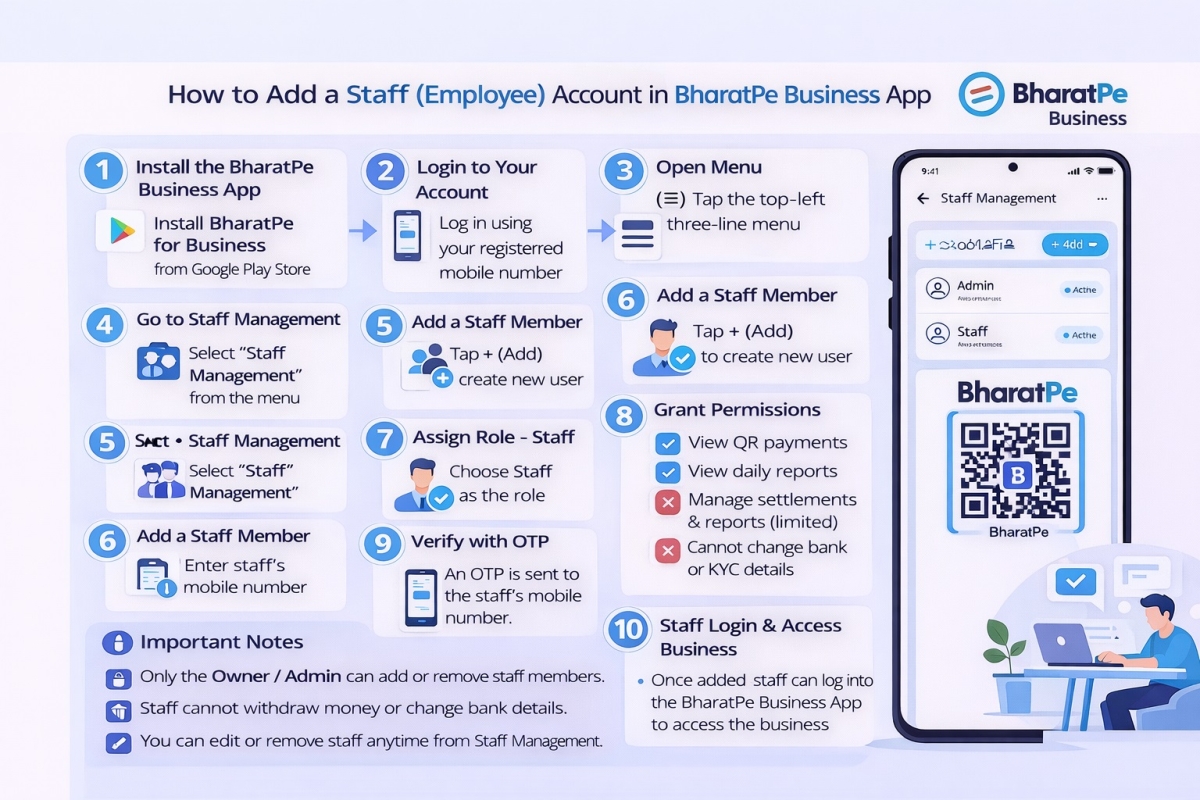
Step by step guide to create a Staff account in the BharatPe…
30 Dec 2025 127
Why SmartupiQR Is the Best Dynamic QR Code API for Instant Bank…
31 Dec 2025 113
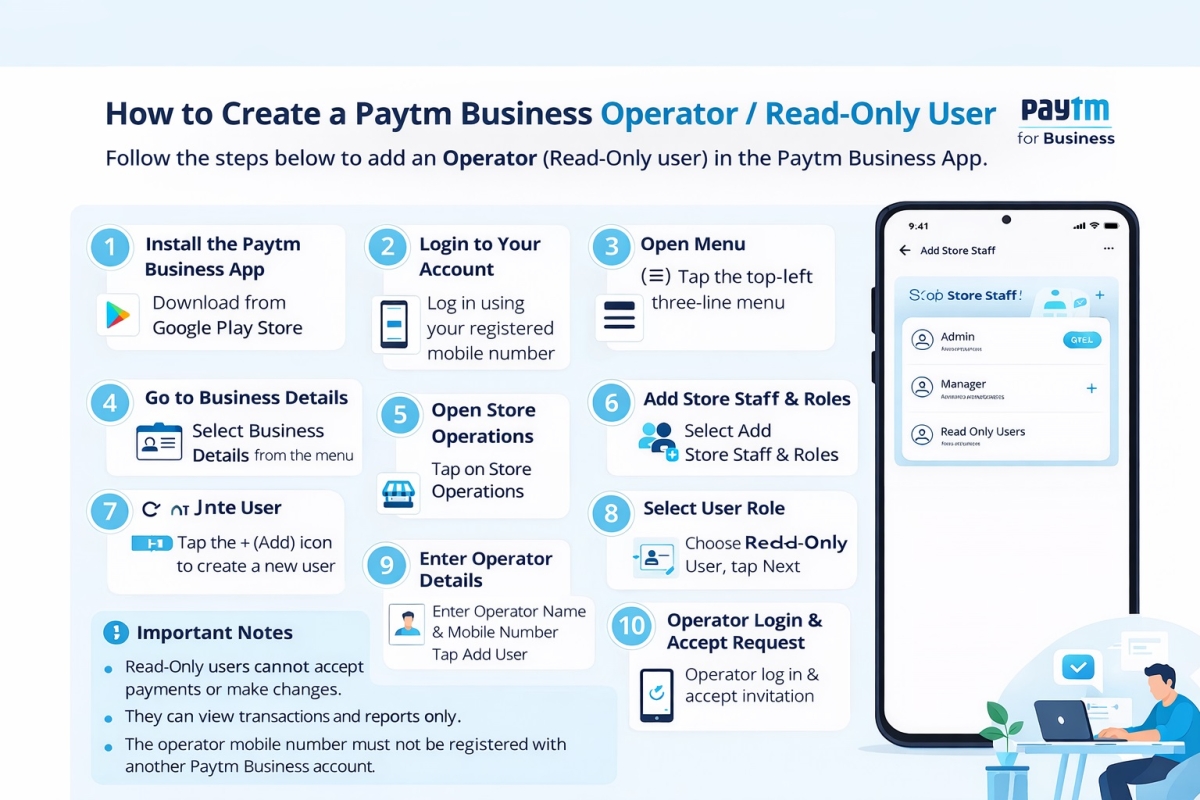
How to Create a Paytm Business Operator or Read Only User
29 Dec 2025 103